 Move Intro
Open Intro
LifeChart helps you document your daily mood and functionality, manage medications, and generate progress reports for your psychiatrist. It is a personal self-monitoring tool — not a medical device.
If you are in crisis, please contact a crisis helpline in your country.
Germany: Telefonseelsorge 0800 111 0 111 (free, 24/7)
Intro
50 words
Move Setup
Open Setup
1. Getting Started – Setup
On first launch, LifeChart guides you through a short setup.
Disclaimer
Before you begin, LifeChart displays an important notice: the app is a personal aid, not a replacement for medical or psychiatric treatment. Please read it carefully.
Setting Up an Evening Reminder
LifeChart can remind you every evening to make your daily entry.
- Enable reminder: Toggle the switch to on.
- Choose a time: The default time is 8:00 PM. Tap the time display to adjust it.
- Without a reminder: Leave the switch off — you can enable the reminder at any time in Settings.
Tap "Get Started" to complete the setup. The app will restart and open the main area.
Setup
121 words
Move Daily
Open Daily
2. Daily Entry
The daily entry is the core feature of LifeChart. Open it via the "Today" tab.
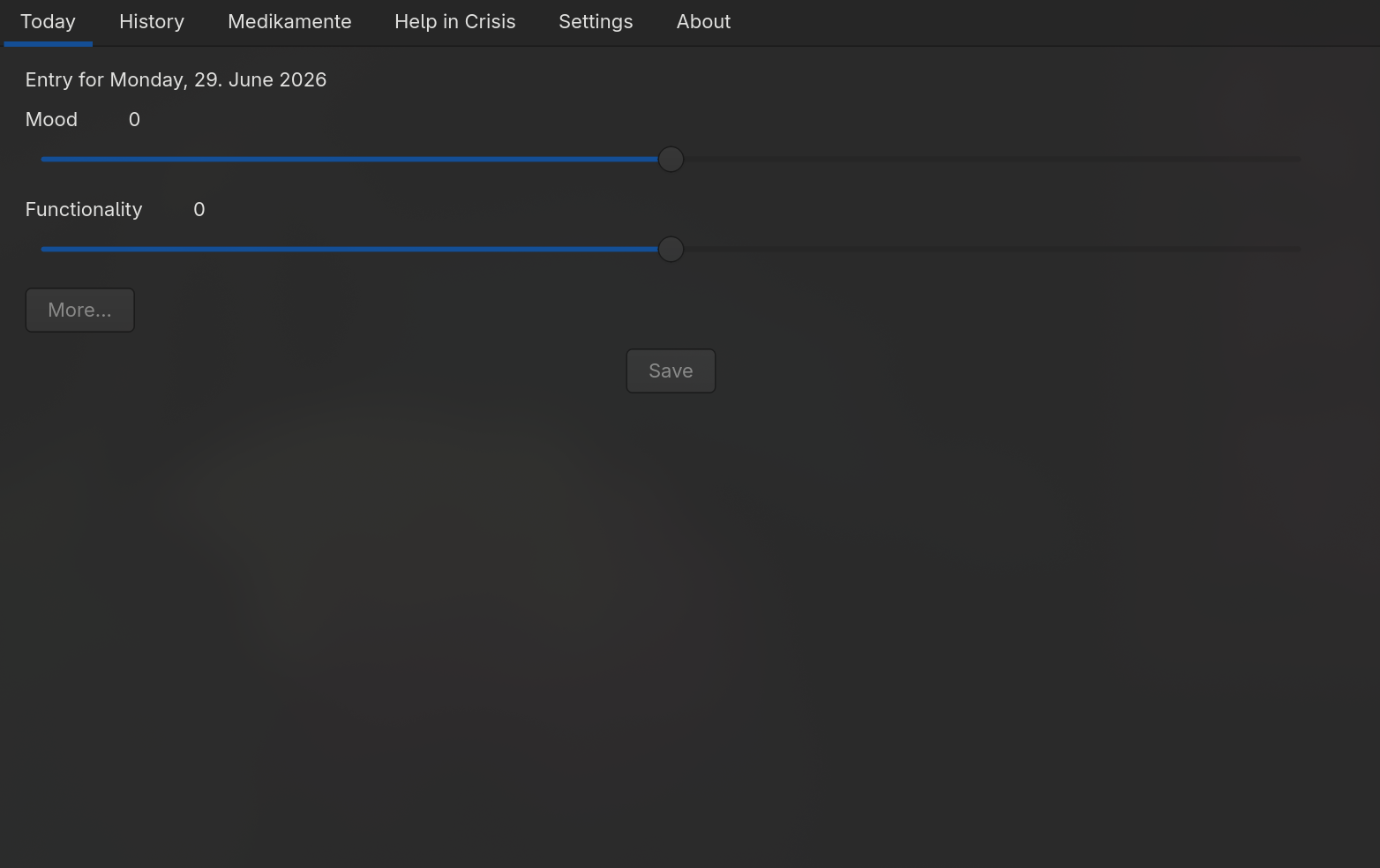
Quick Mode
In quick mode you see two sliders:
| Slider |
Scale |
Meaning |
| Mood |
−5 to +5 |
Your subjective well-being (−5 = severe depression, +5 = severe mania) |
| Functionality |
−5 to +5 |
How well you were able to manage your daily life |
The current value is displayed to the right of each slider (e.g. +2 or −3). A value of 0 means neutral.
Tap "Save" to store the entry.
Full Mode
Tap "More" to expand the extended fields.
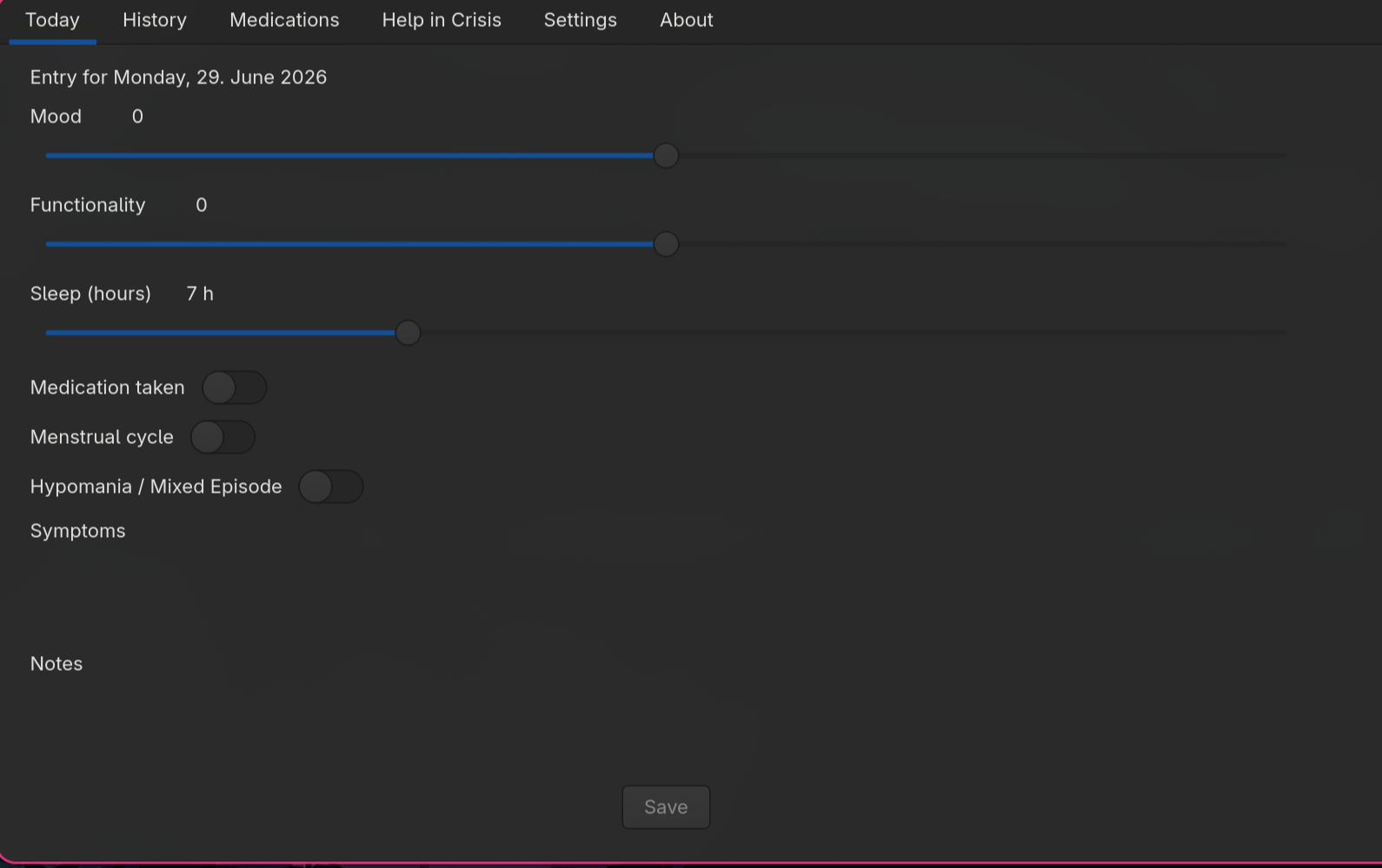
Additional fields:
| Field |
Description |
| Sleep hours |
Hours slept (slider 0–24 h) |
| Medication taken |
Did you take your medications today? |
| Menstrual cycle |
Optional marker for hormonally influence |
Daily
266 words
Move Histrory
Open Histrory
3. History
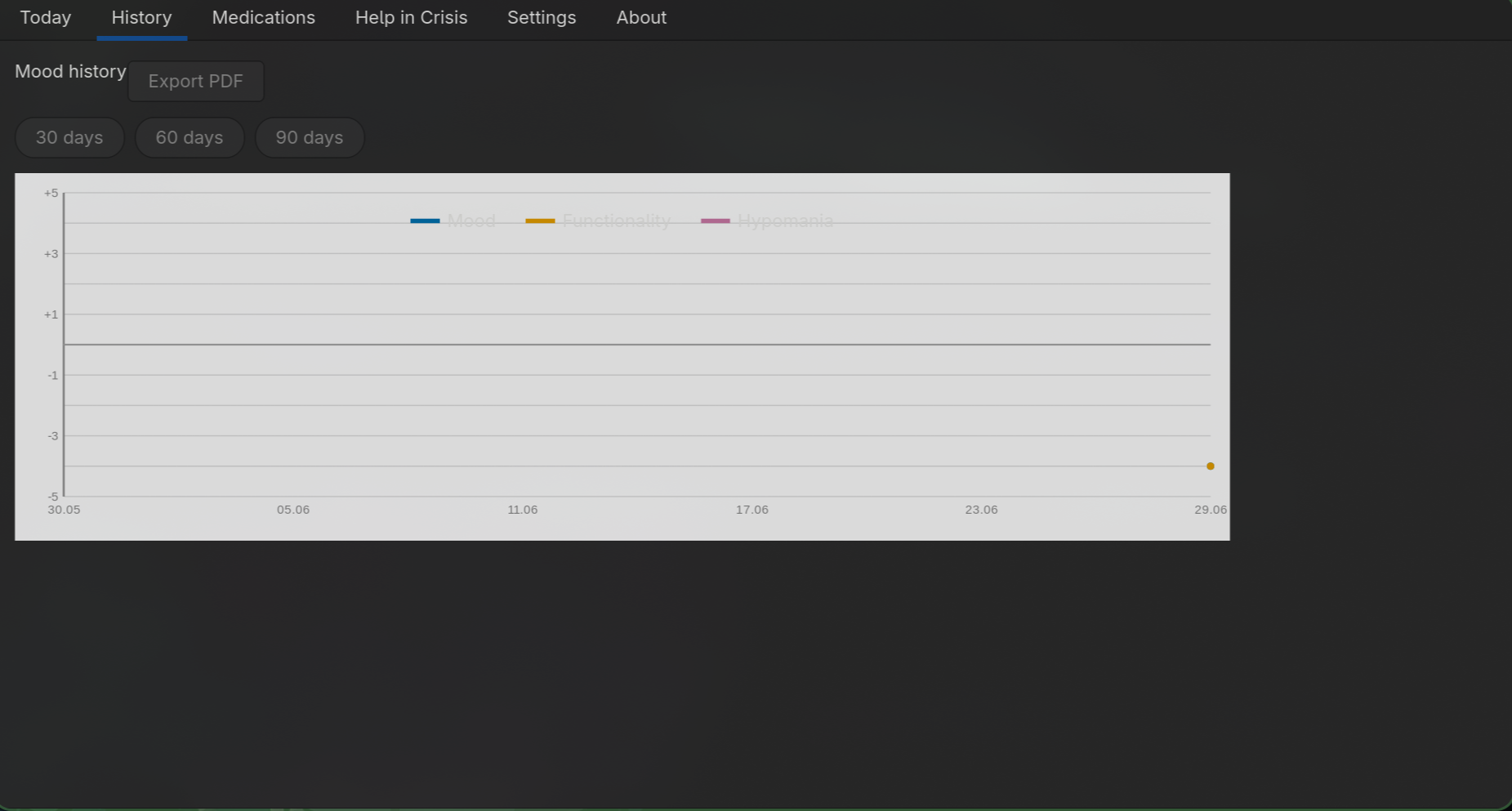
Open the "History" tab to see your mood and functionality over time.
Choosing a Time Range
Use the 30, 60, and 90 buttons to select how many past days to display. The currently active range is highlighted in blue.
Reading the Chart
| Colour |
Meaning |
Blue (#0072B2) |
Mood |
Amber (#E69F00) |
Functionality |
Purple (#CC79A7) |
Hypomania marker |
- The Y-axis shows the scale from −5 to +5.
- The X-axis shows dates (approximately 5 evenly spaced labels).
- Purple markers appear as a vertical band with a diamond dot at the top on days where "Hypomania" was enabled.
- If there are no entries for the selected period, an informational message is displayed instead.
PDF Export
Tap "Export PDF" to generate a progress report.
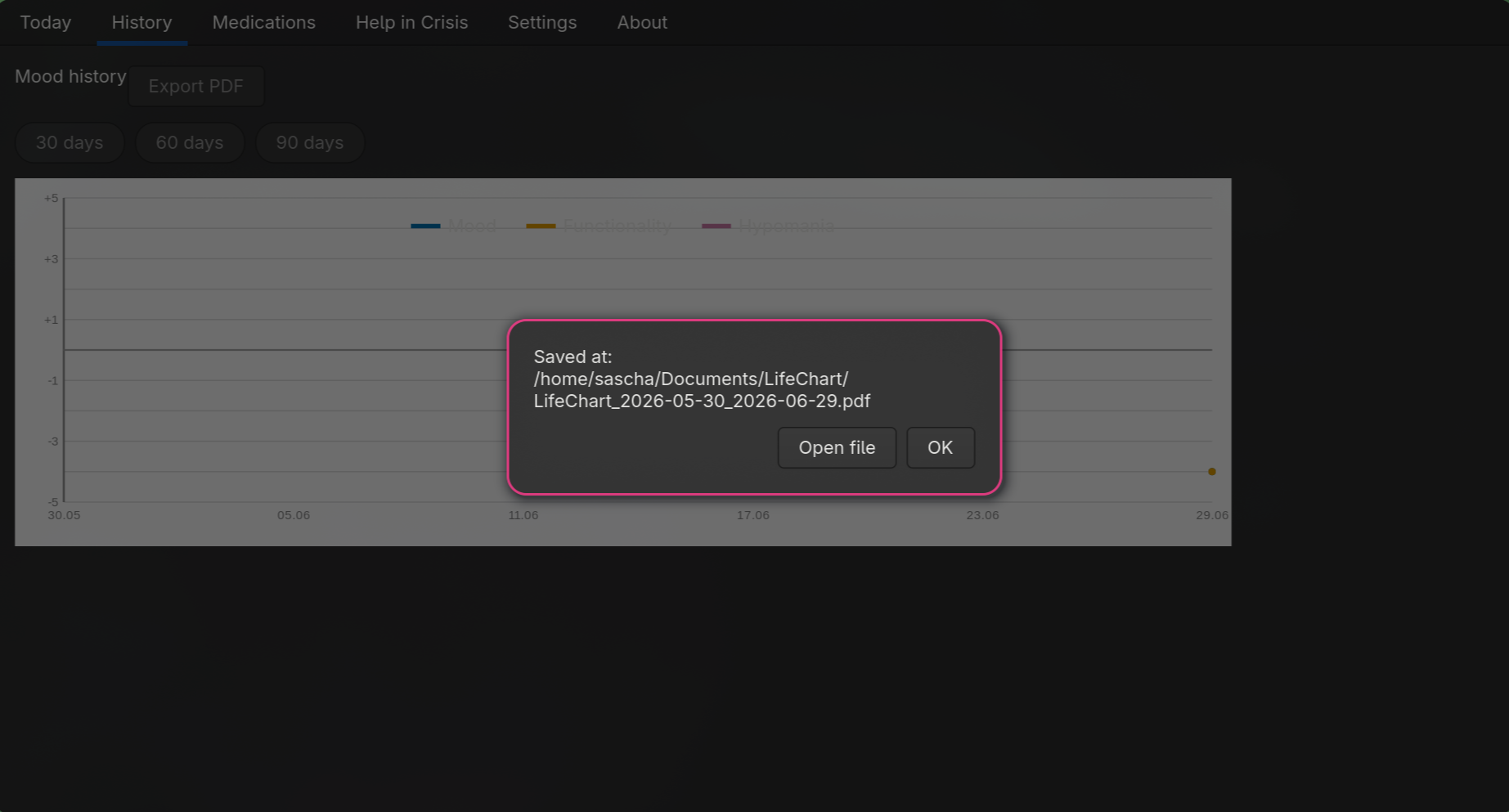
The PDF is saved
Histrory
174 words
Move Medications
Open Medications
4. Medications
Open the "Medications" tab to manage your active medications.
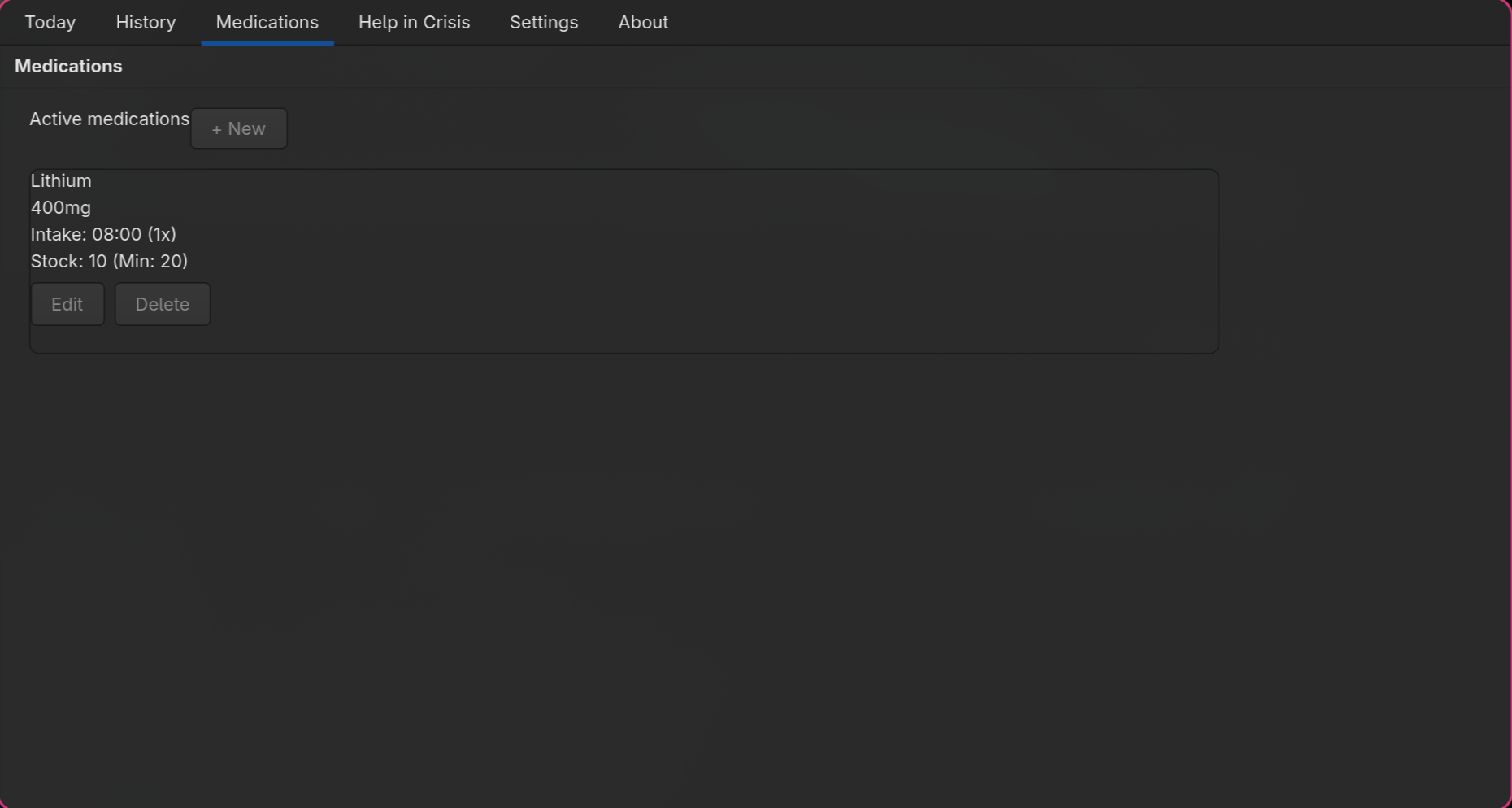
Adding a Medication
Tap "Add" (top right). The form for a new medication opens.
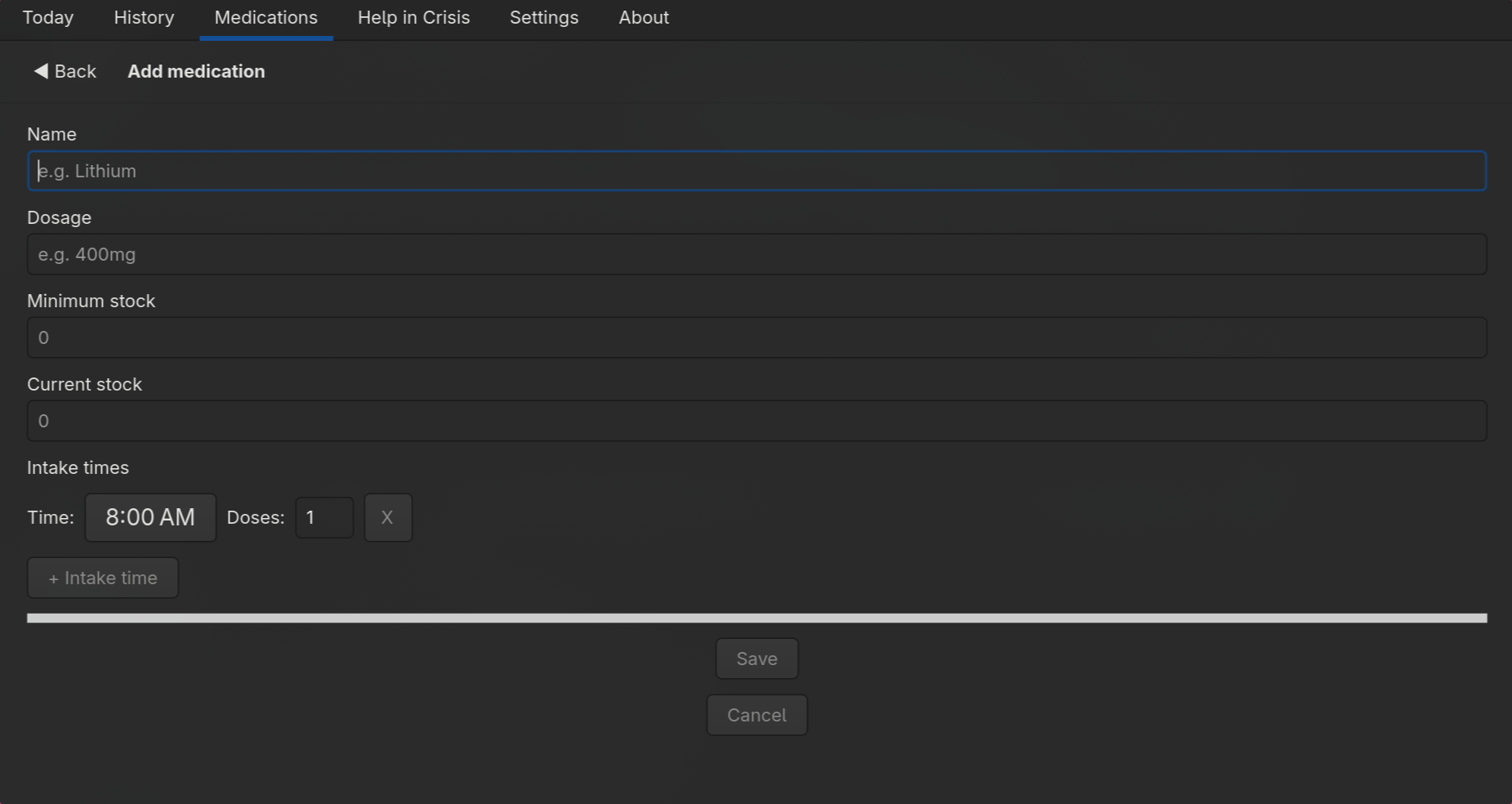
Fill in the following fields:
| Field |
Description |
| Name |
Active ingredient or brand name (required) |
| Dosage |
e.g. "200 mg" or "1 tablet" |
| Minimum stock |
Number of tablets at which a warning appears |
| Current stock |
How many tablets you currently have |
| Intake times |
One or more times of day with the dose count per intake |
Use "+ Add time" to add multiple intake times per medication. The X button next to each row removes it.
Tap "Save" to store the medication.
Editing a Medication
Tap "Edit" on the relevant medication card. The form opens with the existing data pre-fil
Medications
225 words
Move Crisis Resources
Open Crisis Resources
5. Crisis Resources
Open the "Crisis" tab when you need support or want to look up crisis helpline numbers.
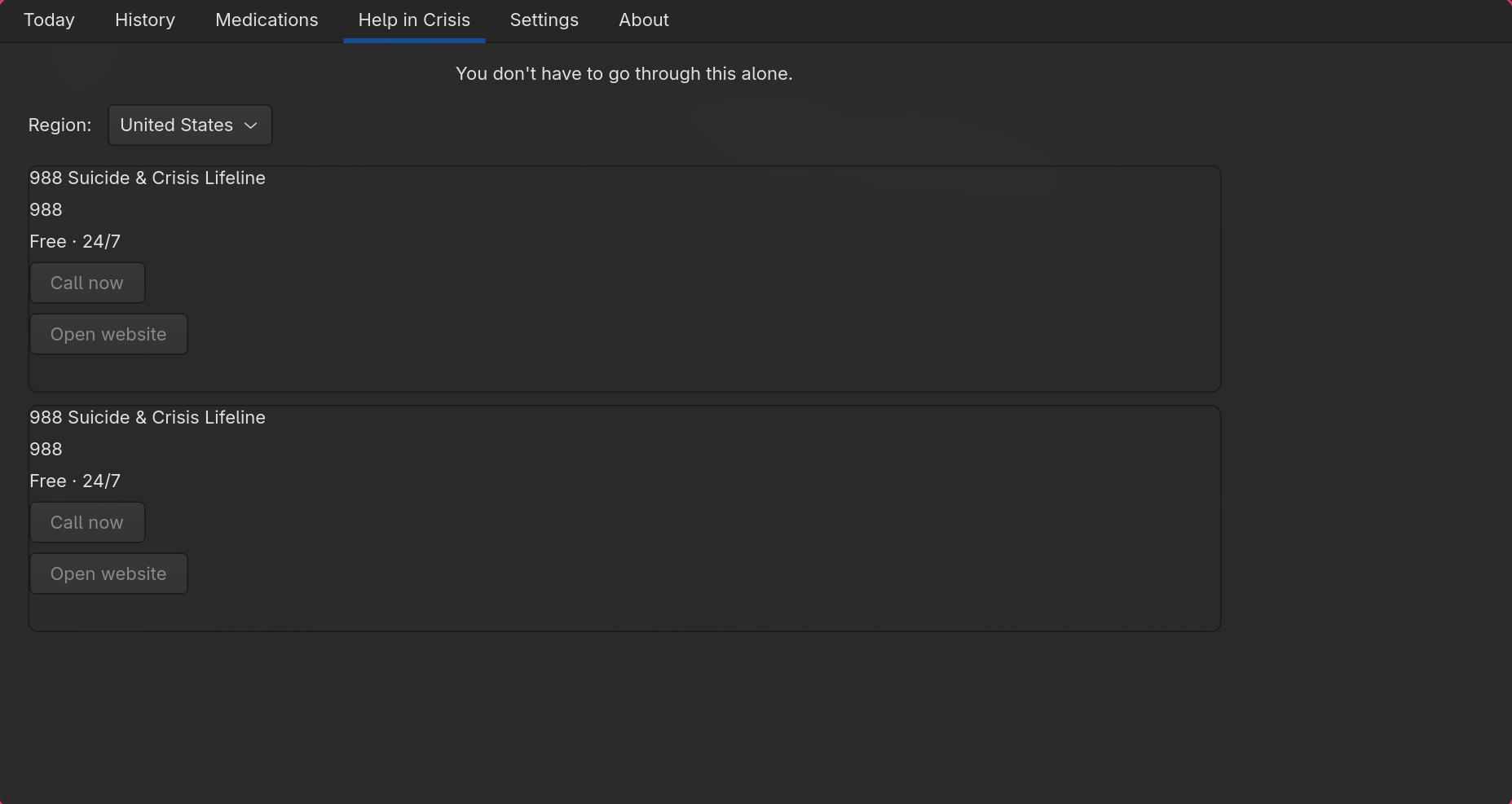
Choosing a Country
Select your country from the dropdown menu. LifeChart automatically detects your system region on first open and pre-selects the matching country. Available countries:
- Germany, Austria, Switzerland
- United Kingdom, United States, Australia, Canada
Calling a Crisis Helpline
Tap "Call" to open the phone app with the helpline number. If no phone app is available, the number is copied to the clipboard instead.
Tap "Website" (if shown) to open the organisation's website in your browser.
Crisis Resources
101 words
Move Settings
Open Settings
6. Settings
Open the "Settings" tab to customise LifeChart to your needs.
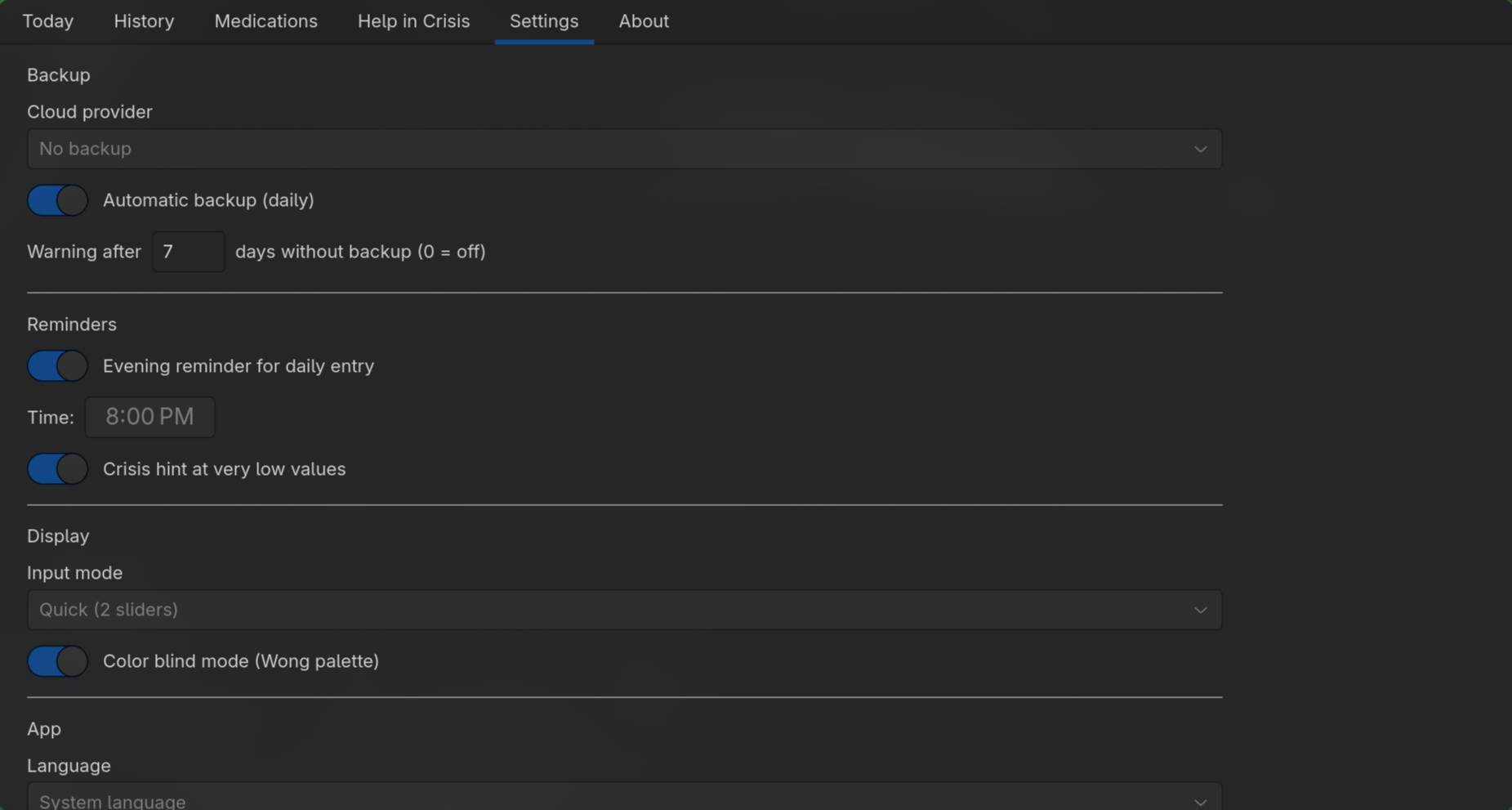
Backup
| Setting |
Description |
| Cloud provider |
No backup, Nextcloud, or local export |
| Nextcloud credentials |
URL, username, and password (shown only when Nextcloud is selected) |
| Automatic backup |
Back up after every save |
| Backup warning threshold |
Number of days after which a warning appears if no backup has been made |
Reminders
| Setting |
Description |
| Evening reminder |
On/off + time |
| Crisis hint |
Automatically shows a pointer to the crisis resources on critical entries |
Display
| Setting |
Description |
| Input mode |
Quick (mood/functionality only), Full (all fields), or always ask |
| Colour-blind mode |
Adjusts chart colours for common colour vision deficiencies |
App
| Setting | Description |
|-
Settings
182 words
Move About
Open About
8. About LifeChart
Open the "About" tab to see version information, licence details, and links to the project page.

LifeChart for Linux (GTK4) is an experimental version. Bugs and incomplete features are possible. Feedback via the bug tracker is welcome.
About
77 words